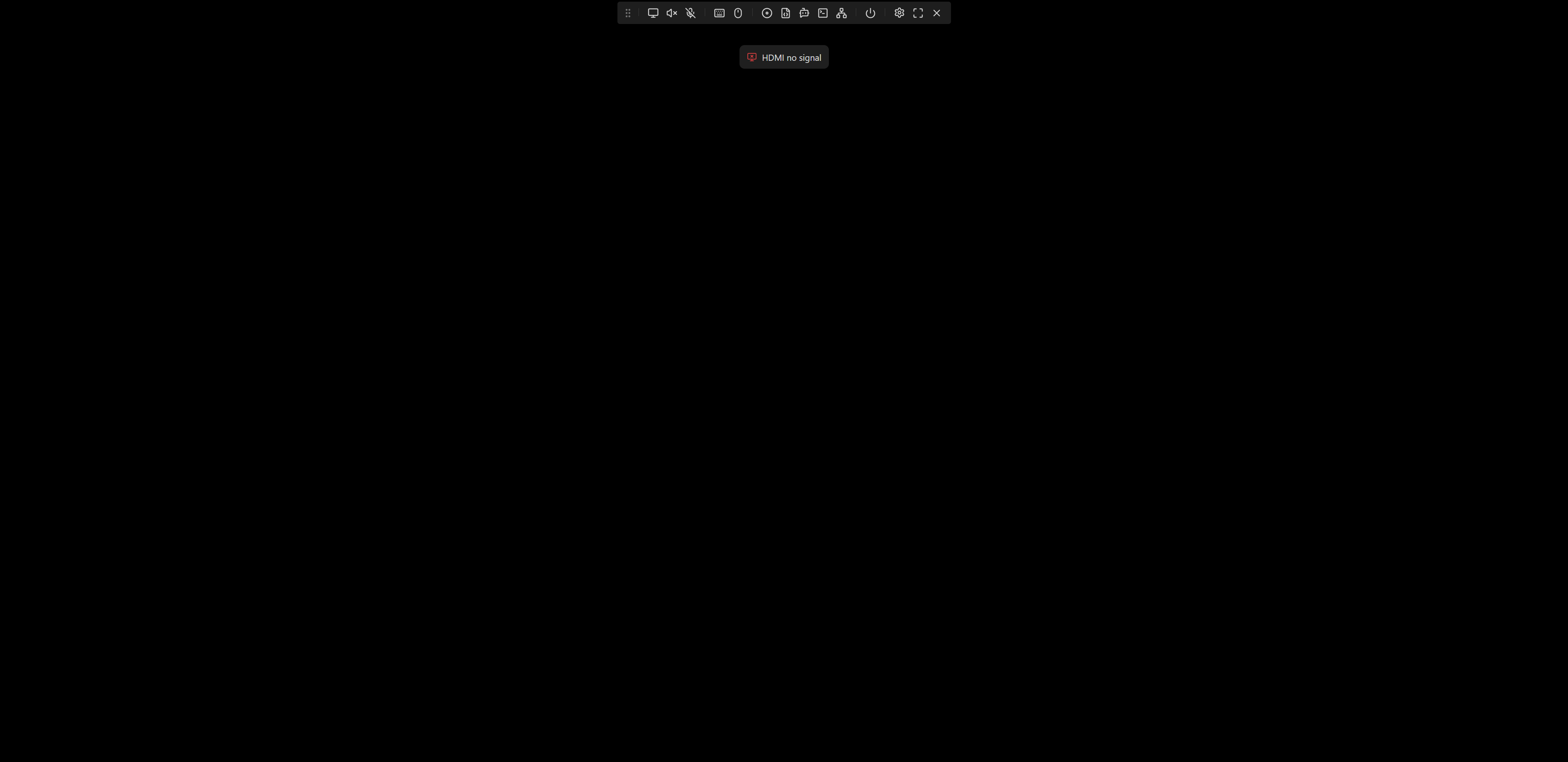
One of the KVM Pro units I purchased appears to be defective. The unit powers on correctly via PoE and the web interface is accessible; however, it does not capture any video signal.
To troubleshoot, I replaced it with another unit from the same order, which functions properly and captures video without issue. Based on this comparison, I believe the original unit is faulty.
Could you please advise on the next steps for replacement or repair?
Thank you very much for your detailed description of the issue and your thorough troubleshooting steps (including comparative testing using the replacement method). This has been extremely helpful in allowing us to quickly pinpoint the problem.
Since you have confirmed that PoE power is functioning normally and the web interface is accessible, this indicates that the device’s main controller and network port functions are intact. The current issue is most likely related to the video capture configuration or the HDMI capture module.
Before we request a replacement part (RMA) for you, to thoroughly rule out the possibility of a software configuration issue (which has been encountered by some users), could you please try performing a simple “factory reset”? This is because sometimes, if the device has previously attempted non-standard resolutions (such as 4K at 45 FPS), it may result in a black screen during capture.
Recommended troubleshooting steps:
-
Hardware Reset: In the Web management interface, navigate to System > Control, locate the “Reset to defaults” button, and click it.
-
Reconfiguration: After the device restarts, re-enter the setup wizard and set the video resolution to the standard 4K30 or 2K60 mode (Note: The factory default is 4K30 + 2K60).
-
Observation: Check if video capture has returned to normal.
-
Are the HDMI input and output connections working properly?
If the above steps do not resolve the issue:
If video capture still fails after restoring default settings, it can be concluded that the HDMI capture hardware module in this unit is physically damaged.
Please reply to inform me of the results of the reset procedure. If it is confirmed to be ineffective, I will immediately initiate the spare part replacement process for you. We sincerely apologize for the inconvenience.
Hi Charles,
I have followed and executed steps 1 to 4 as described in your message. Unfortunetaly, the KVM webUI still displays “HDMI no signal”.
I have tested the HDMI output of the target PC with a real monitor and it works properly.
I now believe that teh NanoKVM Pro is defective.
Please let me know how to proceed with the replacement.
Thank you,
Adam
Could you share a screenshot? Thanks.
HDMI Input & Loop Out#
Currently, configuration is only supported on the Desk version’s screen.
Support for ATX/Desk web interface will be added soon.
If HDMI functionality is not required, you can disable it to reduce power consumption. Operation:
On Desk: From the screen, tap Settings → HDMI to enter the HDMI configuration page, which has two options:
- INPUT: When disabled, Desk stops capturing HDMI input signals.
- LOOP OUT: When disabled, Desk stops outputting HDMI loop-out signals.
Hello Charles, Is it possible for you to send me a replacement for the defective NanoKVM unit as shown with the picture above. Thank you.